
FlexCase
Simulink Basics
- Install processor toolbox for MATLAB
- Connect FlexCase blocks to Simulink Models
- Build microcontroller code for the FlexCase
Install Required Toolboxes
- Install the K3 toolbox 1.7.0
- It is generally recommended to install NXP support packages and the Audesse toolbox in a path without spaces. You can change the toolbox path with Preferences > MATLAB > Add-Ons > Installation Folder before installing the K3 blocks
- Install the NXP Support Package from the MATLAB Add-ons explorer, which assists in the steps required to install the main toolbox

- Install Embedded Coder Support Package for ARM Cortex-M Processors from MATLAB Add-Ons Explorer

- Install the Audesse Simulink Library and follow the instructions in the README.md file.
- If successful, the blocks will be installed and the NXP toolbox will be modified (linker files and peripheral configurations)
- Run installAudesseToolbox.m, following the steps in the readme
- (not recommended) MBDT 1.4.0 is also supported for older versions of the Audesse Library, please contact us directly if you need ongoing support for projects using 1.4.0.

Open and Build Sample Model
- From the toolbox folder, make a copy IMU_k3.slx in a working folder of your choice.
- Open the model and ensure that extra configuration files are generated (this will take some time the first time the model is opened).
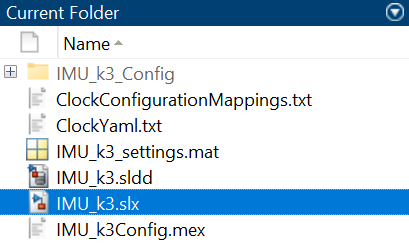
- Build the model with CTRL+B and ensure that the generated build includes a .bin file in the same working folder as the .slx model.
- At the end of the build, Simulink will attempt to send the binary to a target processor, which can safely be aborted to complete the build process.

- The resulting .bin file can be used through FlexCaseFlash or FlexConnect to update controller firmware
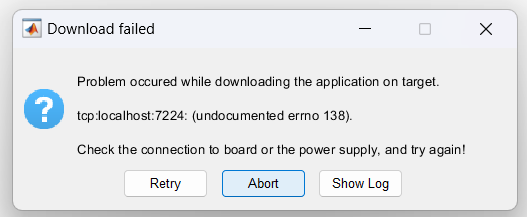
Modifying Application Firmware
- Modify the Pulse Generator Block in the sample model to a different period or pulse width, rebuild and flash to verify that changes are reflected.
- Under normal use, DO NOT modify the configuration file.
- If opening the configuration is required to resolve build errors:
- Double-click on a peripheral block and select Configure to open the config file GUI
- Click the green Update Code button in the top left of the configuration window without making changes the peripherals
- If opening the configuration is required to resolve build errors:
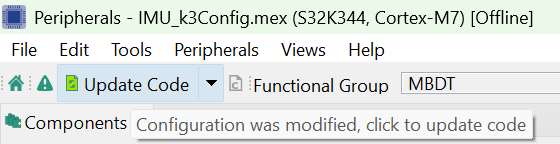
-
- If you require configuration changes to the FlexCase peripherals for special use cases, please contact us regarding safe modification.
